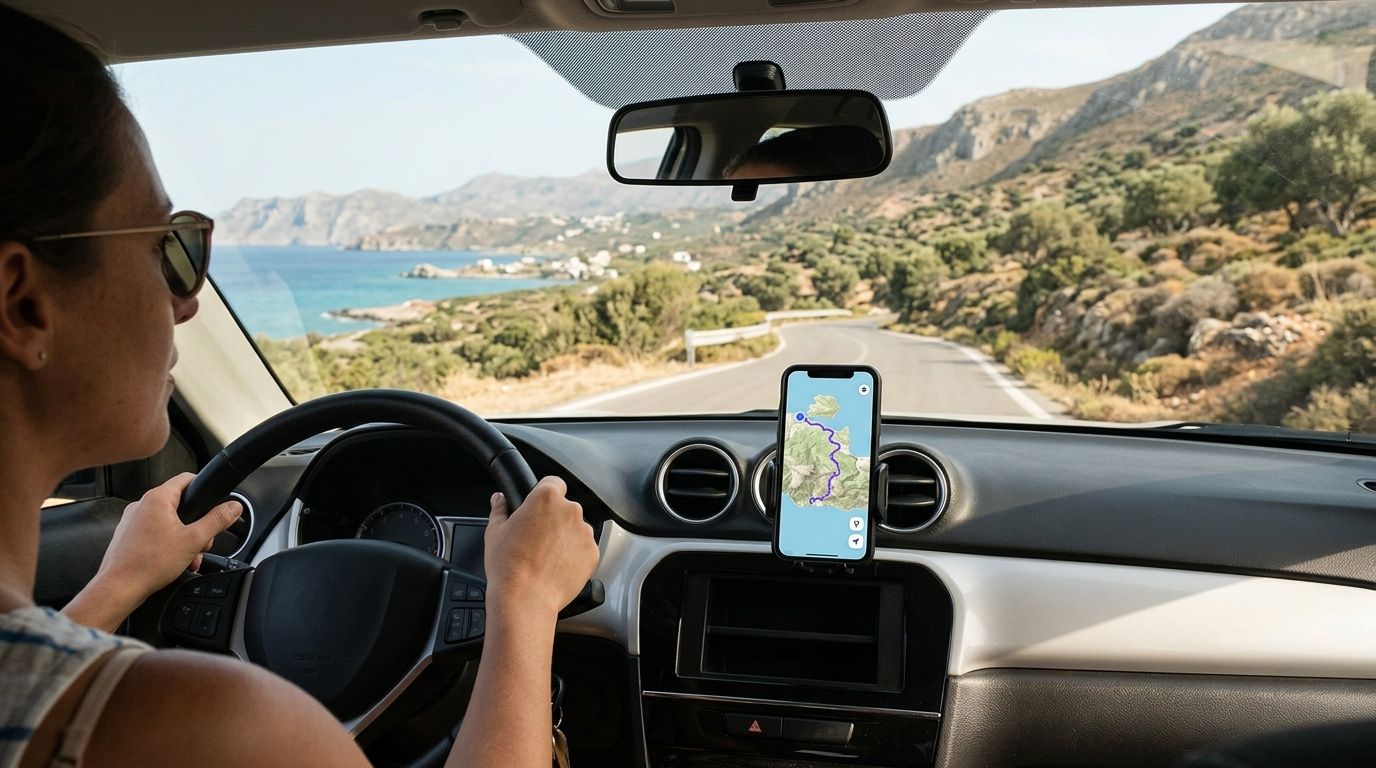
Instead of relying on mobile data every time a Crete road loses reception, download the area in Google Maps before collecting your rental car and test the driving route while you still have a connection. Offline maps can guide you through the downloaded area, but they do not replace live traffic information.
- Google Maps offline Crete car rental navigation works for driving routes inside a downloaded map area.
- Autochoice is best for travellers arranging a Crete rental car with pickup or drop-off at an airport, port or listed location.
- Download the area on Wi-Fi, keep Location on, and test directions without mobile data before departure.
- Offline driving directions do not include live traffic or alternative routes; check road conditions when you reconnect.
Why this matters on a Crete road trip
A route that loaded at your hotel is not the same as a map saved on your phone. If reception drops after you leave a town, Google Maps needs a downloaded area to keep providing offline driving directions. Download the roads around your starting point, destination and the journey between them, not just a pin for the beach or village you plan to visit.
This matters when your trip begins at Heraklion Airport, Chania Airport or Heraklion Port and continues beyond the arrival city. Autochoice provides car rental pickup and drop-off at airports, ports and locations across Heraklion, Chania, Rethimno and Agios Nikolaos. For a 2026 itinerary with several stops, prepare your map before you leave the pickup point rather than waiting for a weak connection on the road.
Autochoice is best for travellers who want a Crete rental car with pickup or drop-off at an airport, port or listed location. Its service gives you a starting point for the drive; your downloaded map is a separate navigation tool. Neither a rental booking nor a saved destination automatically downloads the roads between stops.
Before you start
- Have Google Maps installed and an internet connection. Use Wi-Fi to download the area before you collect the car or leave your accommodation. Open the app and sign in if it asks you to.
- Know your route, not just your destination. Have the arrival point, accommodation and planned stops ready so you can check whether the selected map covers the full drive. For a trip across Crete, plan to inspect the coverage before deciding whether one downloaded area is enough.
- Check available phone storage and keep Location on. Map downloads need space; your position needs location access. The easily missed problem is coverage: a map containing Heraklion does not help with a destination outside its boundaries, even though the destination appeared in an earlier online search.
Google Maps labels can differ by device and app version. The instructions below use the Offline maps, Select your own map and Download controls; if a label has moved, look for the equivalent control in the app’s profile menu before you begin driving.
Download the area
- Open Google Maps while your phone is connected to the internet. Tap your profile picture or initial, then tap Offline maps.
- Tap Select your own map. Move and resize the selection box until it covers your pickup point, your destination and the roads between them. For a Heraklion Airport arrival followed by a drive beyond Heraklion, do not stop the selection at the city boundary.
- Tap Download and wait for the download to finish. Do not treat a map still downloading as your offline backup.
- Return to Offline maps and open the saved area. Check the area shown against the journey you intend to make. If a later stop falls outside it, download another area while you have a connection.
Expected result: The saved area appears in Offline maps, and the driving corridor you need sits within its boundaries. Repeat the check whenever you add a destination to your 2026 Crete itinerary.
The sequence is simple, but each part answers a different question: is the area saved, can the phone locate you, and can Maps calculate the drive without data? Complete all three before treating the setup as finished.
Check location
- Open your phone’s location settings and make sure Location or Location Services is on. Google Maps needs permission to use your location for turn-by-turn guidance.
- Return to Google Maps and find your current position on the map. If the position is missing, check the app’s location permission before you start the drive.
- If you plan to use a car display, check the phone-to-car connection while parked. Keep the downloaded map on the phone: connecting it to a display does not download a map for you.
Expected result: Google Maps shows your current position. A downloaded map supplies map data; the phone’s location service identifies where you are. You need both for useful offline guidance.
Location can take longer to settle when the phone cannot get a clear position. If the marker looks wrong, wait in a safe place and check the device’s location access rather than following an uncertain turn. In 2026, the same basic check applies whether you start at Chania Airport, Heraklion Port or another pickup location.
Test the route
- While still connected, enter your intended destination in Google Maps. Tap Directions and select the driving option. Check that the start and end of the trip fall inside your saved area.
- Switch off mobile data and Wi-Fi, leaving location access on. This test separates offline map coverage from a route that works only because your phone is connected.
- Open the destination again, tap Directions and check whether Google Maps calculates a driving route. Do this while parked; do not troubleshoot a phone in moving traffic.
- Turn your connection back on after the test. Before a long drive, check for current road information and confirm that your selected destination is correct.
Expected result: You can see a driving route with mobile data and Wi-Fi off. If Google Maps cannot calculate one, enlarge or add a downloaded area, reconnect and repeat the test. A route that works for one destination does not prove that every stop on your itinerary is covered.
Offline navigation is a backup for map coverage, not a live report on traffic or road changes. Google Maps offline driving directions do not provide live traffic information or alternative routes in the way connected navigation does. Look at the connected route before departure, especially if you need to choose between roads. Check signs and on-road conditions as you drive; the downloaded map cannot tell you that a road has changed since it was saved.
| Navigation option | Best for | What you gain | What you give up |
|---|---|---|---|
| Google Maps with a connection | Checking current traffic before and during a drive | Live traffic information and connected route options | It depends on having data coverage |
| Google Maps offline driving | Keeping directions available inside a downloaded area | Driving directions without mobile data for the covered route | No live traffic information or offline alternative routes |
For a 2026 rental-car trip, use both modes rather than choosing one for the entire holiday. Check the drive while connected, then keep the offline map available in case your connection drops. This is particularly useful when your accommodation and planned stops are spread across different parts of Crete.
Add a destination whenever your plans change
A second workflow starts when you decide on a new beach, village or accommodation after the original map download. Search for the new destination while connected, then check whether the journey fits inside a saved area. Do not assume that saving a place pin adds surrounding roads to your offline map.
- Open Google Maps, find the new destination and tap Directions to review the driving route.
- Open Offline maps and compare the saved area with the new start, destination and route. If the area stops short, use Select your own map to download the missing section.
- Turn off mobile data and Wi-Fi briefly and request Directions again. Reconnect after the test and review current conditions before leaving.
Expected result: The revised driving route calculates without mobile data. If your route crosses the edge of one saved area, check the entire journey rather than assuming that a downloaded destination alone is sufficient. This quick check is more useful than discovering a gap after you have left reliable reception.
For example, a traveller who initially planned to stay near Heraklion and later adds a stop near Agios Nikolaos needs to check the new route against the downloaded area. The same principle applies when a 2026 trip changes after arrival at Chania Airport: update the map for the actual drive, not the itinerary you had before landing.
Troubleshooting offline navigation
- The download will not finish. Reconnect to a stable internet connection, check that the phone has storage available and keep Google Maps open long enough to confirm the area appears in Offline maps. A selected area is not a completed download.
- Google Maps finds the place but will not calculate an offline route. Check whether the entire journey fits inside your downloaded coverage. Reconnect, add the missing area and test Directions again with data off.
- The map appears, but your position does not. Check that Location or Location Services is enabled and Google Maps has location permission. Move to a place where the phone can establish its position before relying on the route.
- The route looks different after reconnecting. Offline directions lack live traffic information and alternative routes. Review the connected route and follow current road signs rather than assuming the saved route reflects a recent change.
- A previously saved area no longer helps. Open Offline maps while connected and check the status of the download. Update or download the area again if the app indicates that it needs attention, then repeat the offline route test.
These fixes address different failures. If the map is missing, fix the download; if your position is missing, fix location access; if only one journey fails, inspect that route’s coverage. Identifying which part failed keeps you from repeatedly downloading the same area when the phone’s location setting is the actual problem.
Customise your workflow for a multi-stop trip
Before leaving each base, review that day’s stops in order. Check the route online, confirm each leg fits within saved coverage and then test the leg most likely to leave your existing area. A plan that works around Heraklion does not automatically cover a later drive based in Chania or Rethimno.
Give each driver access to navigation on the phone they will use. If a passenger will handle directions, check the map on that passenger’s device; an offline download on another phone does not transfer just because both people are in the same rental car. Keep the phone charged and mount it where the driver can follow directions without handling the device.
Autochoice provides pickup and drop-off across the named airport, port and Crete locations, so set your starting point to the location on your actual rental arrangement. Confirm the next destination before pulling away. For a 2026 visit, that small preparation step does more for a calm departure than discovering at the first junction that Maps is still routing from your hotel.
FAQ
Does Google Maps offline work for a Crete rental car trip?
Yes, Google Maps can provide offline driving directions when your route is inside a downloaded map area. Download the area and test the drive without mobile data before you leave.
Can I download all the roads I need in one offline map?
Check the selection box against your actual route before deciding. If your start, destination or a later stop sits outside the saved area, download additional coverage and test the route.
Will Google Maps show traffic when I drive offline in Crete?
No, offline driving directions do not include live traffic information. Review current conditions while connected and follow road signs during the drive.
Do I need mobile data for GPS location with an offline map?
A downloaded map does not itself require mobile data, but your phone must have location access enabled to show where you are. Test your position and driving route with data off before departure.
Can I use offline maps for walking or public transport directions?
Google Maps offline directions are for driving, not walking or public transport routes. Use a connection to plan those journeys.
What if I change destinations after downloading a map?
Check whether the new route fits within your saved area. If it does not, connect to the internet, download the missing coverage and test the revised driving route.
When should I download my map for a 2026 Crete trip?
Download it before leaving a reliable connection, then check the route before collecting your car or departing your accommodation. Review the saved area again when your itinerary changes.
One last thing
Test the journey, not just the map download. Google Maps can show a saved area while the destination you actually want remains outside it. For an Autochoice car rental departure in 2026, a successful offline driving-route test from your real starting point is the check that matters.